- Login to your subscription
- Click on the content you wish to send.

3. This icon will appear on the left side of your page.
4. Once you’ve clicked on the icon, you’ll be redirected to this page.
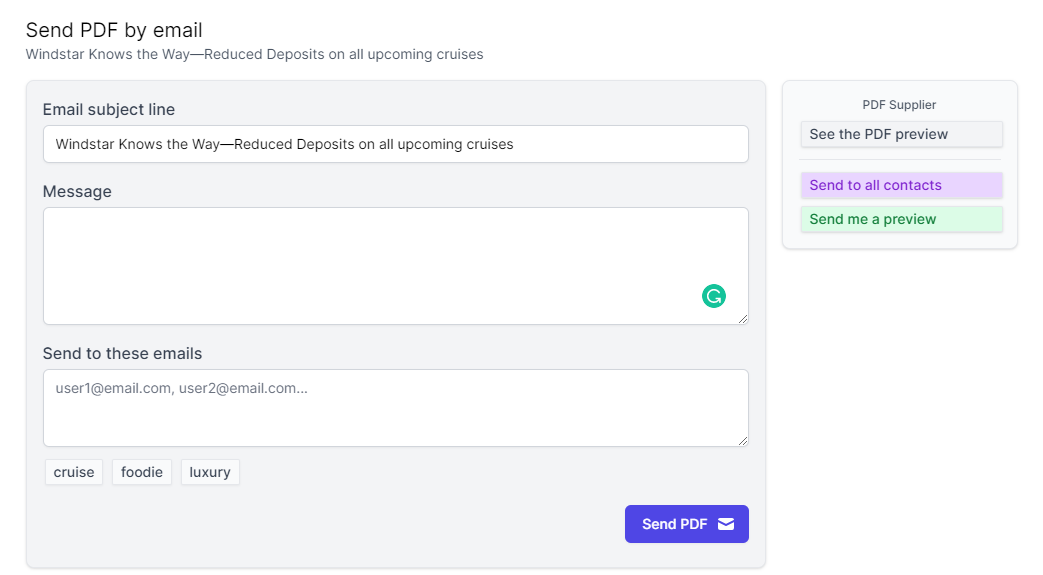
5. (Optional) Click on 'See the PDF preview' or 'Send me a preview' if you want to see the preview before sending it to your customers.
6. There are 3 ways to send your PDF:
- Click on "Send to all contacts" to send it to your whole database.
- Manually enter the emails of the specific customers you want to reach.
- Or send it to a group by selecting a tag. Only customers that were tagged with that group will receive it.
7. Click 'Send PDF'
CMS Help
Contact Us if you can't find what you are looking for