Content is the most important piece in the whole process because posts are the content that subscribers will send to the customers. Be sure to publish the correct ones to the subscriber's front-end.
From the dashboard page (if you are not there, click on the very right-top red icon).

Select one of the team's “TDC CMS” or “SGC TDC FR” and go to the Team Section page. The link to access all team content is at the top menu "Content".

A page with a list of all posts will show; Blogs, Products, Offers, Photos, Pages... The order is by the date of creation. Also, there you will find at the top multiple options for searching in case you don't find the one you want to publish.
Once you find the post you want to publish, there are a few ways to do it: from the post itself, from the publish icon on the list, or using the cart.
Publishing from the Post Editor
(Use this option if you're planning to publish only one post or if it's the first time you're publishing the post)
Select the post by clicking on the name, and on a separate page, a form with all the details will show.

The form has a tab specifically for “Publish”. Click on it, and you will be able to see the whole list of subscribers related to the team you are working on.
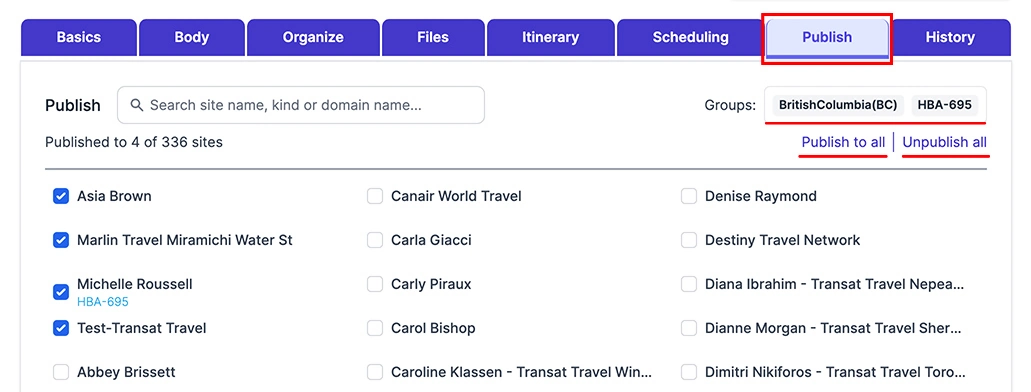
You also have multiple options: you can Publish to all, Check one by one, or select the assigned Groups. Did you select the wrong ones? No worries, the option to “Unpublish All” is there too.
Important: If you just created a post and it's the first time you're going to publish it, we suggest you publish it first to the templates “Transat Travel Template” or “Voyages Transat Template”. This way, you can check in the front-end if all the post info is correct before it becomes visible to the subscribers, including photos, texts, PDFs, etc.
Publishing from the “Publish” Icon
(Use this option if you're planning to publish only one post, just be sure the post is active before publishing.)
From the same list of posts, you will see a group of icons in the last column of each post. The second one is for “Publish”.

Click on it, and you will be able to see the whole list of subscribers related to the team you are working on.
Exactly like the first method, you have multiple options: Publish to all, Check one by one, Unpublish All, or select the assigned Groups.
Publishing Using the Cart
(Use this option if you're planning to publish multiple posts, for example, when you create a new subscriber)
From the same list of posts, you will see a group of icons in the last column of each post. The first one is for the "Cart".

Click on it to add one by one the posts you want to publish. The number of items added to the cart will show at the top menu. When you finish adding posts to the cart, click on the top menu cart icon.
CMS Help
Contact Us if you can't find what you are looking for