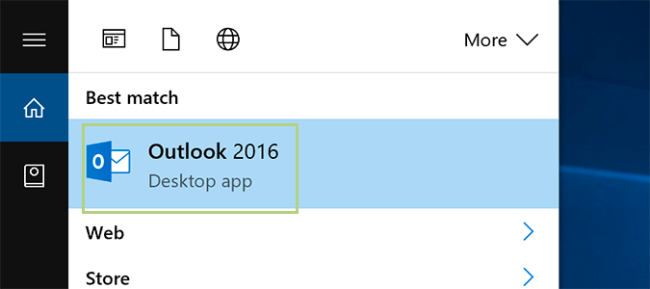
1. Open the Outlook Desktop Client application.
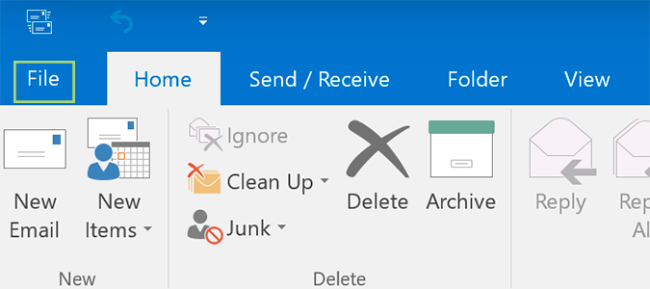
2. Click the "File" tab at the top left.
3. At the top of the sidebar on the left, click “Open & Export”.

4. Click “Import/Export”.

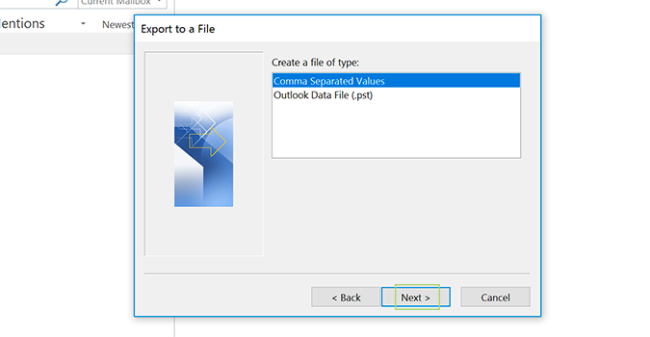
5. Click “Export to a file” and click “Next”.

6. Select “Comma Separated Values” and click “Next”.
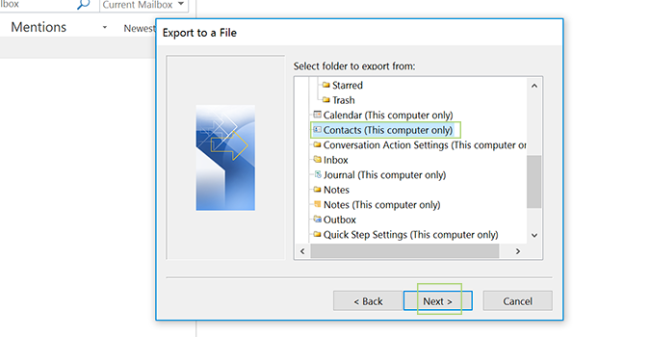
7. Select “Contacts (This computer only)” and click “Next”.
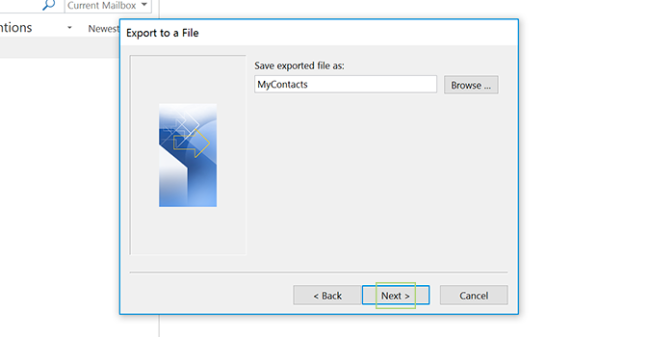
8. Name the file, or click “Browse” to find an existing export file (if you’ve done this previously) and then click “Next”.
9. Click “Finish”.
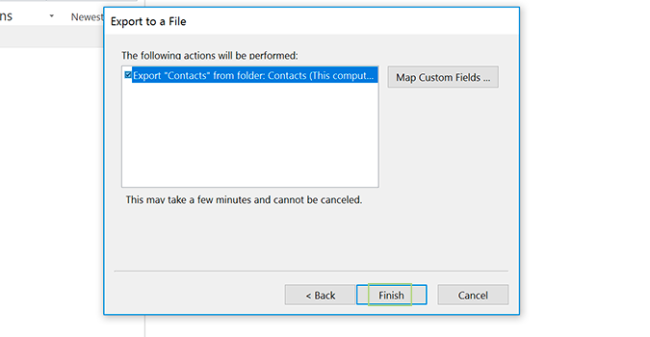
The file will now save to your documents folder for easy import into any service that accepts CSV files.
CMS Help
Contact Us if you can't find what you are looking for